Test the window, the route and the conversation
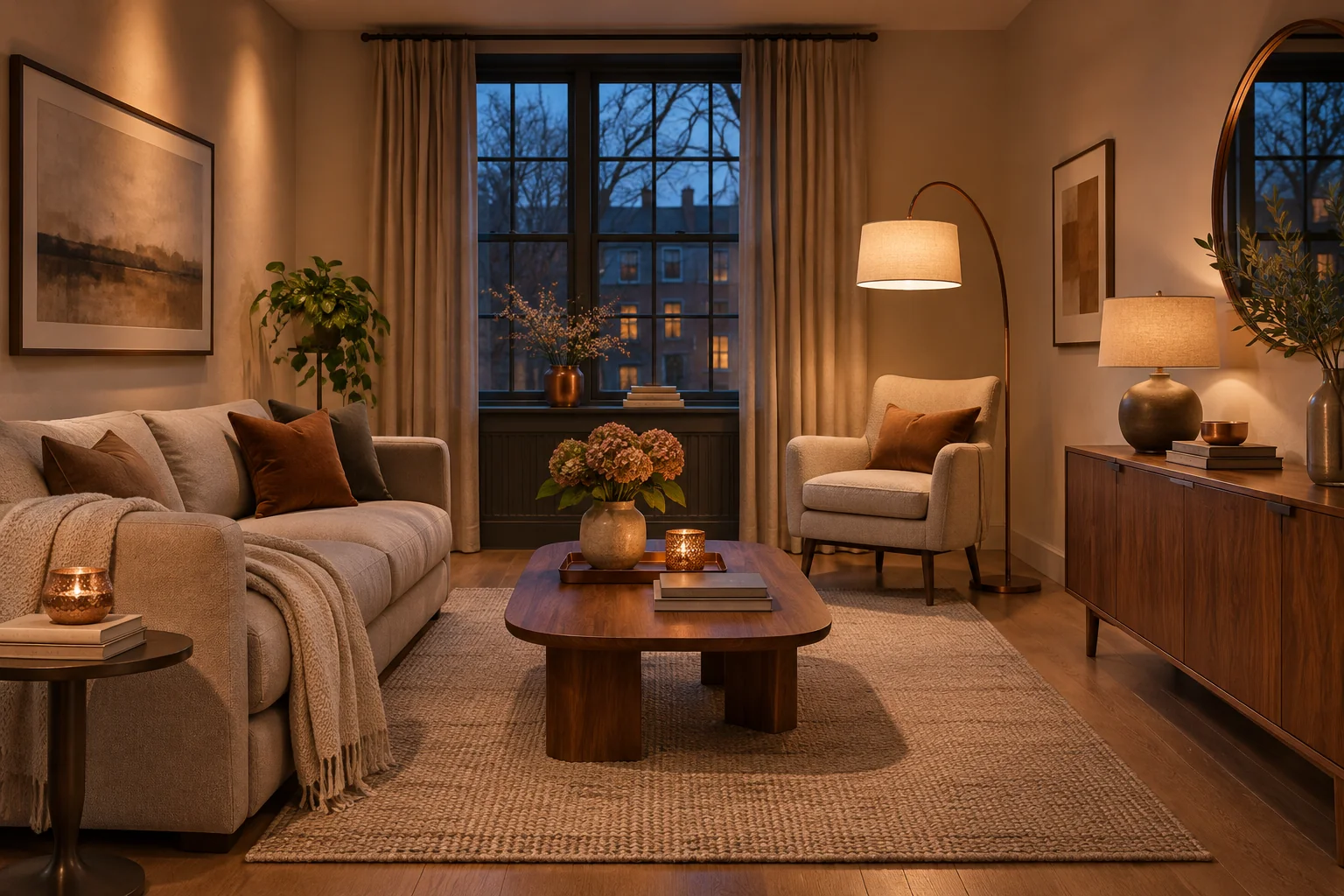
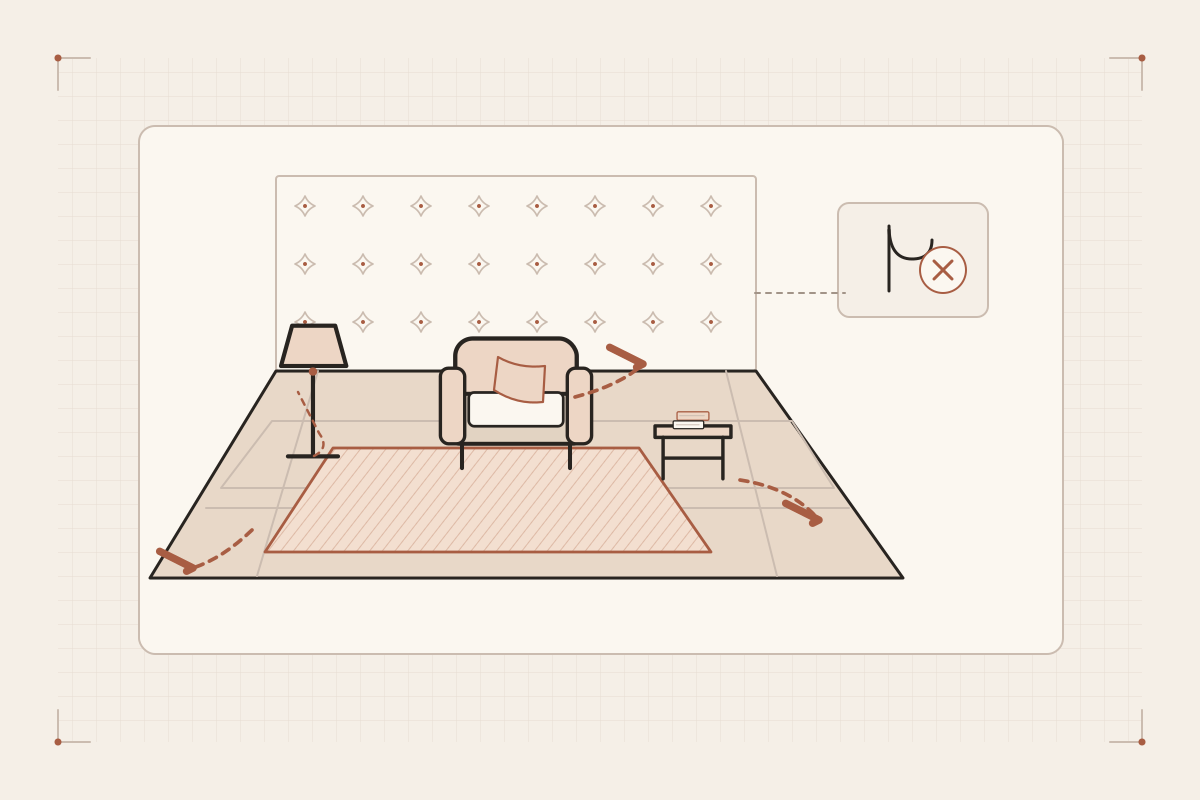
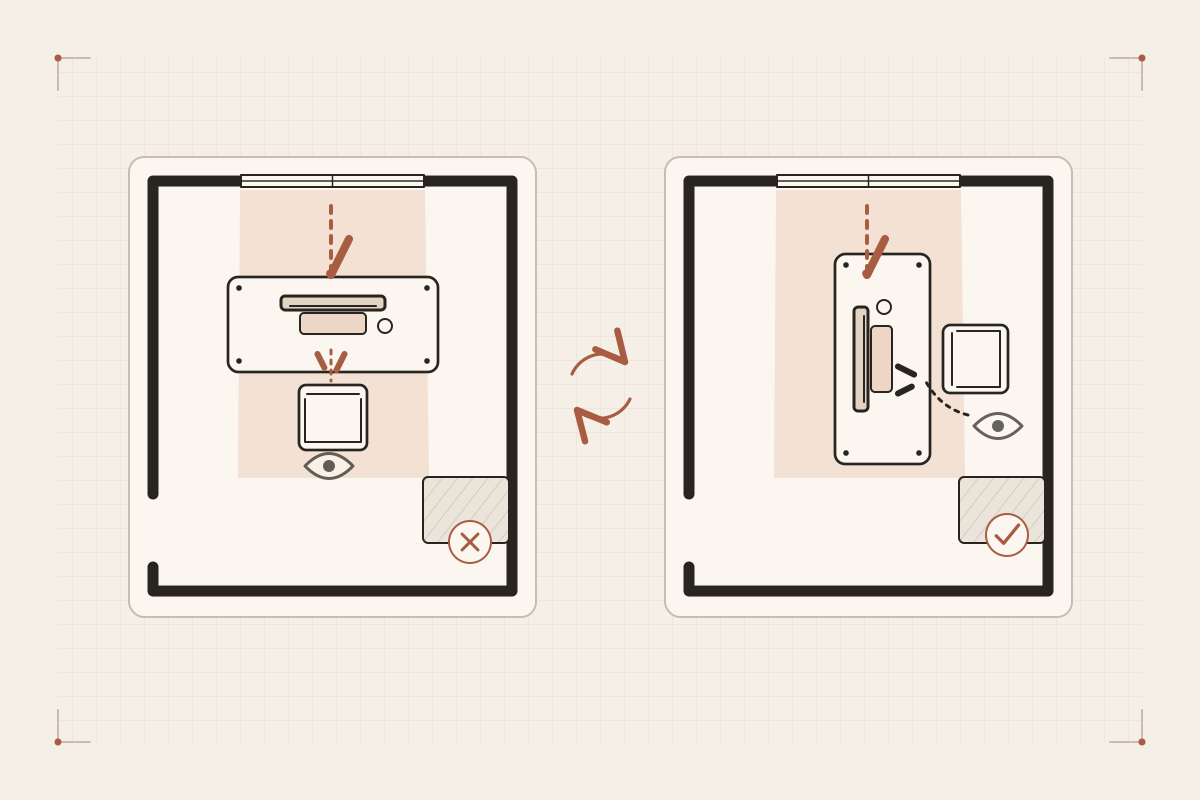
Try a position where the main screen is at a right angle to the window. Work there in the morning and afternoon if possible, and look for reflections on the screen and hard light on your face during a call. A change in orientation or an adjustable shade can make a workable position without sacrificing the view.
Check the background another person will see during a call and listen at the times that matter. If people pass behind the chair or share the nearby seating during meetings, try the other end of the room or agree when the shared area can be used. Confirm power access and keep cables away from walking routes.
Size the furniture around your equipment and chair
Set out the monitor, keyboard and pointing device you plan to use. Try typing and reaching for the controls with your shoulders relaxed and your feet supported. For a desktop setup, the U.S. Occupational Safety and Health Administration gives a preferred monitor viewing range of 20 to 40 inches, about 51 to 102 cm, and advises placing the top of the screen at or below eye level. Adjust for legibility and your individual needs.
Pull the chair back, sit and stand while someone walks past. If the table is too shallow for comfortable screen placement, check whether an appropriate monitor arm or a deeper top fits the space and product requirements. Add task lighting that avoids reflections and reaches the work surface if your notes or keyboard disappear into shadow.
Make the work station easy to put away
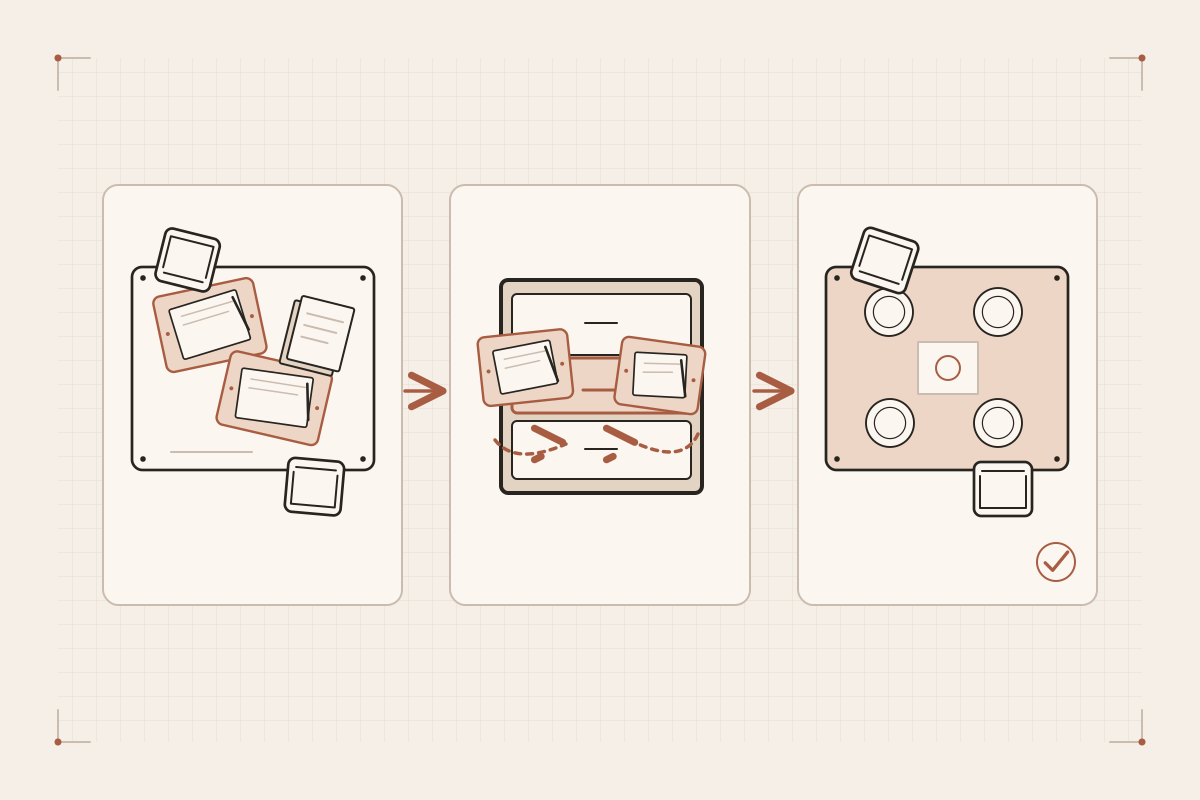
Decide what has to stay connected and what you are willing to clear every evening. Give paper and small equipment a nearby home that can be reached without removing unrelated objects. For a permanently connected device, leave access to its controls and avoid trapping cords behind furniture that will be moved often.
If you share the desk, record the settings each person uses. A chair that can be adjusted and a separate basket for each person’s equipment may reduce setup friction more than an additional cabinet.
A two-monitor workspace without losing the living room
Illustrative brief: a full computer setup must stay ready for work while the room remains usable in the evening. Measure the monitor stands, keyboard, computer and cables together; the desktop alone is not the whole footprint.
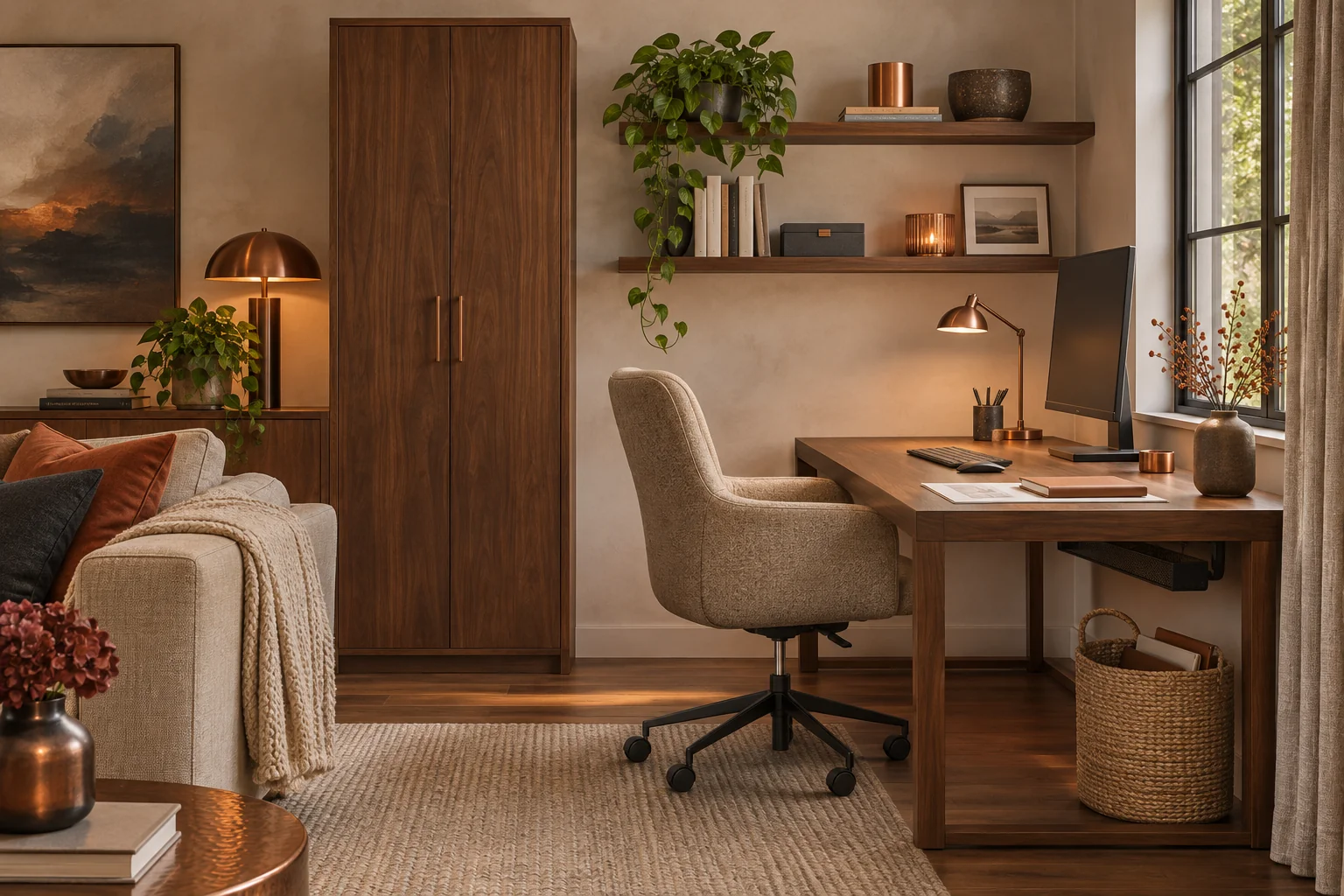
Compare a desk near the window with one along a quieter wall. Check screen reflections at the hours you work, the chair pulled back and whether another person can pass. Include the position of sockets without stretching cables across a route.
If the window position fails the glare test, try a different orientation before choosing the darker corner. Give work materials a defined storage place and test the room with both the desk and seating in use.
An illustrative workstation at a dining table
A household tests both ends of its table using an existing chair, a monitor and a loose lamp. At the window-facing end, afternoon reflections make text difficult to read during calls. They test sitting side-on to the window, choose this orientation and store the removable work equipment in an adjacent cupboard each evening.
Limits and checks
- OSHA’s monitor figures are ergonomics guidance for computer workstations. Individual vision needs, equipment, disabilities and work tasks can call for another arrangement or a professional assessment.
Sources and further reading
- OSHA computer workstation monitor guidance — Provides the preferred viewing range, screen height and glare guidance for computer workstations.
- OSHA computer workstation desks guidance — Discusses positioning equipment and ensuring adequate leg and working space.